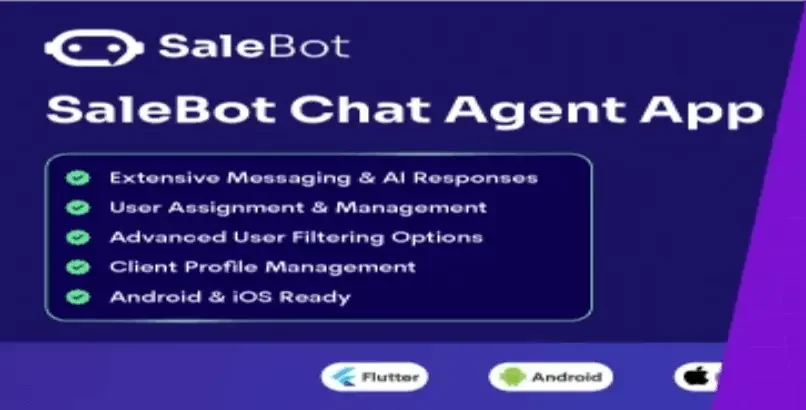
SaleBot Chat Agent is a high-performance Flutter mobile application designed to empower support teams and sales agents to manage WhatsApp and Telegram conversations in real time. Built as a companion app for the SaleBot SaaS platform, it allows agents to respond faster, manage chats efficiently, and stay connected with customers anytime, anywhere.
SaleBot Chat Agent – Flutter App for Android and iOS
The Salebot Agent Chat App is built specifically for the Salebot Web Application, providing a streamlined communication platform for admins and staff. This app integrates seamlessly with the Salebot web interface, offering advanced features to manage client interactions across multiple channels like WhatsApp and Telegram, while also enhancing agent productivity through AI-powered responses and efficient user management.

Demo
Demo APK: Download APK
Email: client1@spagreen.net Password: 123456

Core Features
1. Authentication
Login:
- Admin/Staff can log in using their registered email address and password.
- The app will verify the credentials against a secure backend to ensure access is granted only to authorized users.
Forgot Password:
- Admin/Staff can initiate a password recovery process by providing the email address linked to their account.
- An OTP (One-Time Password) is sent to their email inbox for verification.
- Once the OTP is entered correctly, the user can reset their password to something new.
2. Filters
Channel Filter:
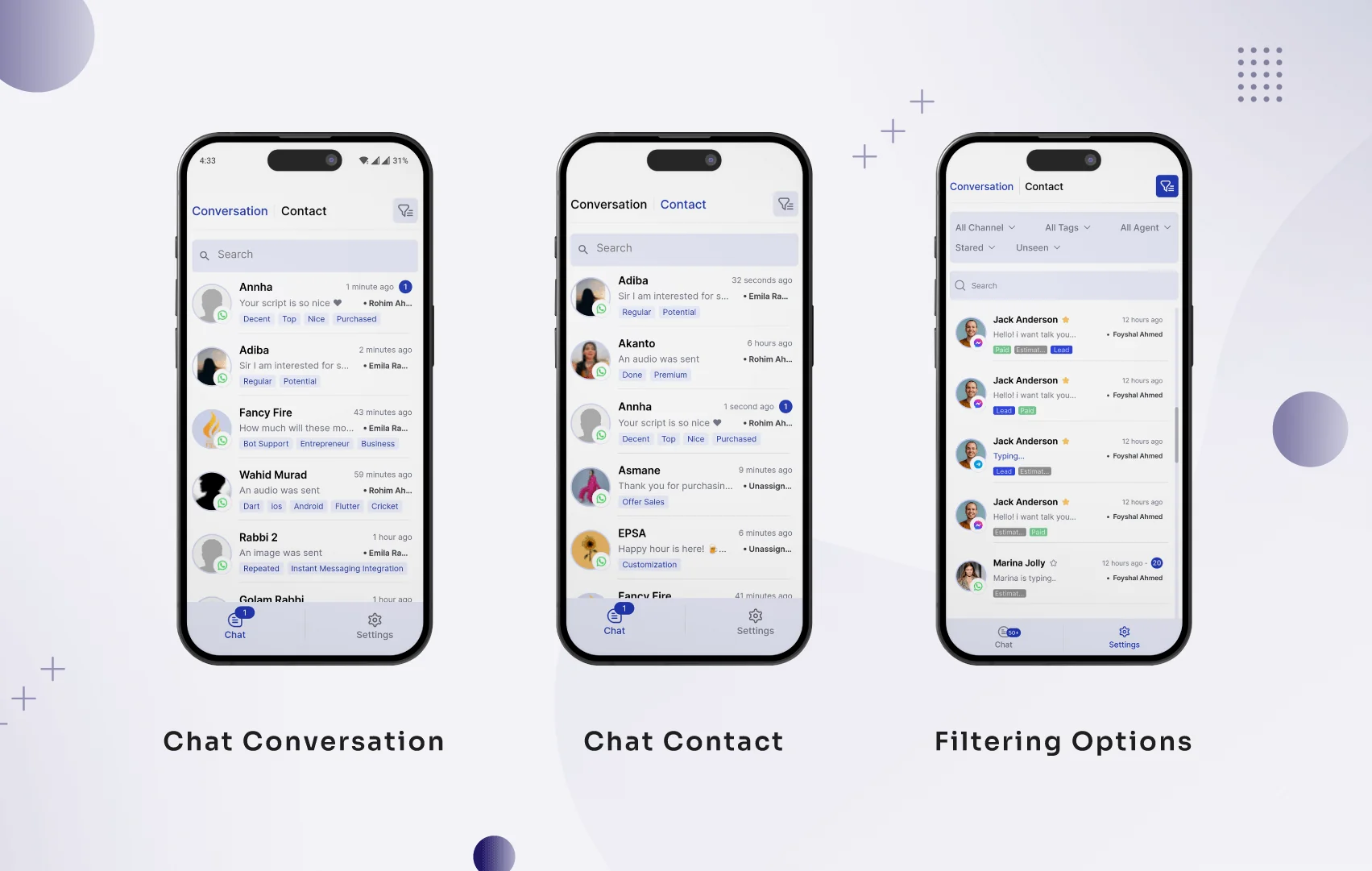
- Admin/Staff can filter users/clients based on their communication channel (e.g., WhatsApp, Telegram).
- This feature helps segregate users by the platform they are using, making it easier for agents to manage chats from different sources.
- Clicking on a channel filter will show all users associated with that specific channel.
Tag Filter:
- Admin/Staff can view all tags assigned to users (e.g., “VIP”, “New Client”, “Support Request”).
- Clicking on any tag will display a list of all users associated with that particular tag, streamlining client management based on custom classifications.
Agent Filter:
- Admin/Staff can view the list of all agents or staff members and their respective assigned users.
- Clicking on an agent’s name shows a list of all users assigned to them, allowing for quick access to client conversations managed by specific staff members.
Unseen/Seen Filter:
- Admin/Staff can filter users based on whether their messages have been seen or not.
- Users with unread messages (unseen) can be prioritized for follow-up, and users with read messages (seen) can be checked for any further action or follow-up.
3. Search Functionality
- Admin/Staff can search users by name or other identifiers (e.g., email, phone number).
- This functionality makes it easier to locate specific users or clients within the system.
4. Messaging Features
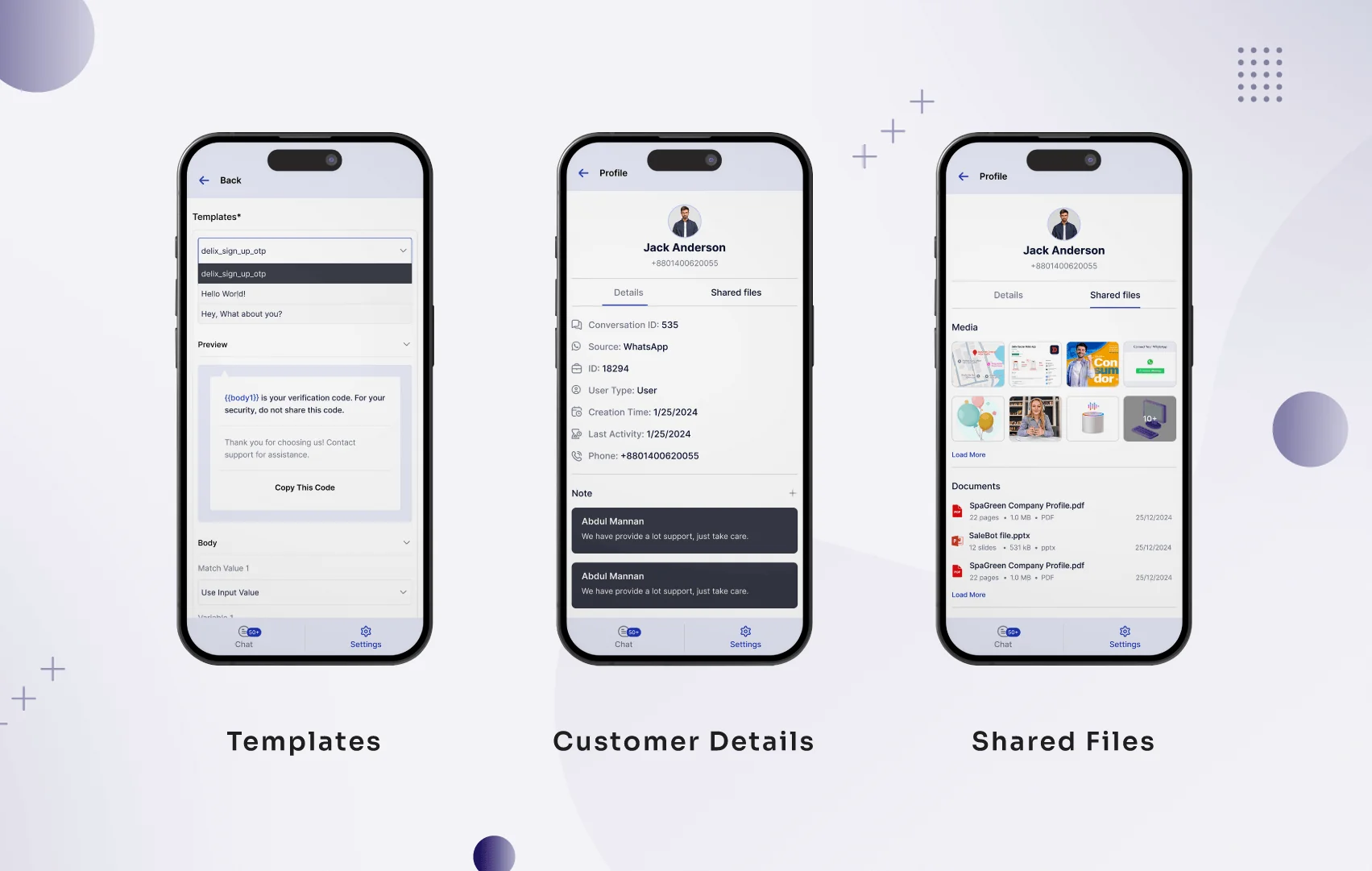
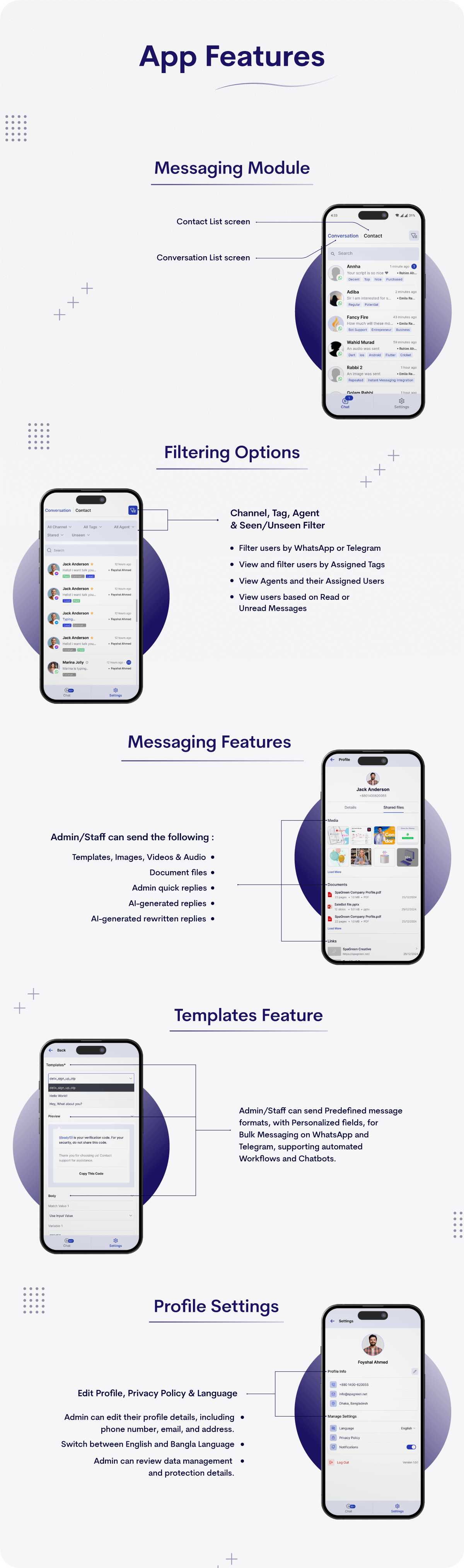
- Admin/Staff can send predefined message templates (e.g., welcome messages, FAQs) to users for faster communication.
- Admin/Staff can send images, videos, documents, and audio files.
- Admin/Staff can use AI-powered responses and quick replies to improve efficiency.
5. User Assignment
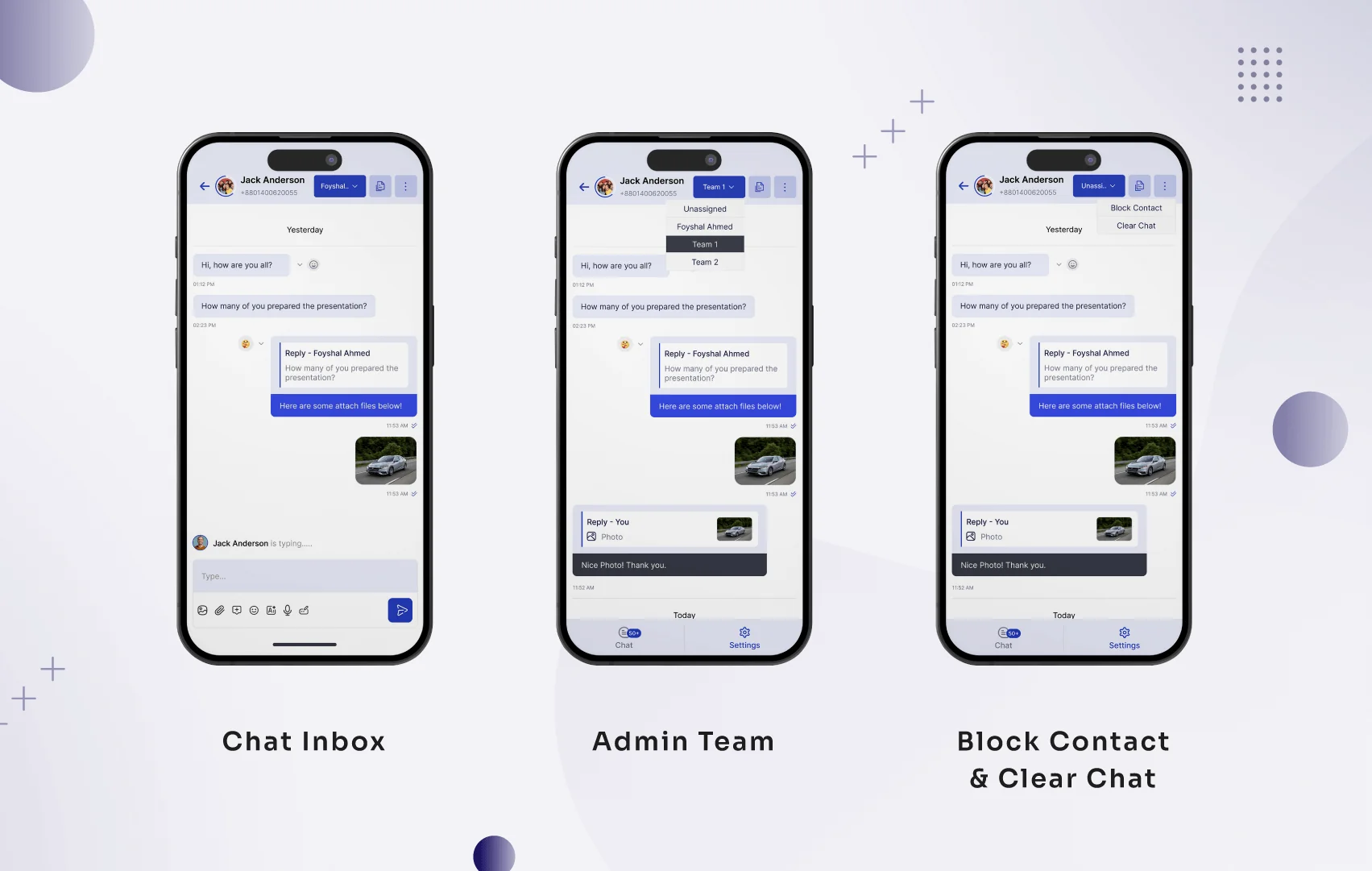
- Admin can assign or unassign users to specific agents for follow-up or further interaction.
6. Chat Management
- Admin/Staff can clear chat history to remove irrelevant or outdated information.
- Users can be blocked from sending messages in case of abuse or spam.
7. Client Profile Management
- Admin/Staff can add notes and assign tags to client profiles.
- Client information includes Conversation ID, Source, User ID, User Type, Creation Time, Last Activity, and Phone Number.
- Shared files like images, documents, and links can be viewed.
8. User Chat Interface
- A contact list screen displays all users.
- A conversation list screen allows interaction with active and past conversations.
- The app will verify the credentials against a secure backend to ensure access is granted only to authorized users.
Forgot Password:
- Admin/Staff can initiate a password recovery process by providing the email address linked to their account.
- An OTP (One-Time Password) is sent to their email inbox for verification.
- Once the OTP is entered correctly, the user can reset their password to something new.
2. Filters
Channel Filter:
- Admin/Staff can filter users/clients based on their communication channel (e.g., WhatsApp, Telegram).
- This feature helps segregate users by the platform they are using, making it easier for agents to manage chats from different sources.
- Clicking on a channel filter will show all users associated with that specific channel.
Tag Filter:
- Admin/Staff can view all tags assigned to users (e.g., “VIP”, “New Client”, “Support Request”).
- Clicking on any tag will display a list of all users associated with that particular tag, streamlining client management based on custom classifications.
Agent Filter:
- Admin/Staff can view the list of all agents or staff members and their respective assigned users.
- Clicking on an agent’s name shows a list of all users assigned to them, allowing for quick access to client conversations managed by specific staff members.
Unseen/Seen Filter:
- Admin/Staff can filter users based on whether their messages have been seen or not.
- Users with unread messages (unseen) can be prioritized for follow-up, and users with read messages (seen) can be checked for any further action or follow-up.
3. Search Functionality
Search Users:
- Admin/Staff can search users by name or other identifiers (e.g., email, phone number).
- This functionality makes it easier to locate specific users or clients within the system.
4. Messaging Features
- Templates: Admin/Staff can send predefined message templates (e.g., welcome messages, FAQs) to users for faster communication.
- Images: Admin/Staff can send image files to users as part of the conversation.
- Videos: Admin/Staff can send video files, making it possible to share promotional content or videos for client support.
- Document Files: Admin/Staff can send documents like PDFs, reports, or any other necessary files to users.
- Audio: Admin/Staff can send voice recordings or audio files to users for personalized communication.
- Admin Quick Replies: Admin/Staff can use quick reply options to send predefined responses to frequently asked questions, saving time.
- AI-Generated Replies: Admin/Staff can use AI-powered responses generated by the system, helping to maintain smooth communication with clients.
- AI-Generated Rewritten Replies: Admin/Staff can use AI-generated suggestions to rewrite responses, making it easier to personalize or refine communication.
5. User Assignment
- Assign Users: Admin can assign one or multiple users to specific agents for follow-up or further interaction.
- Unassign Users: Admin can unassign users from agents/staff with just one click, freeing up the agent and reassigning the user if necessary.
6. Chat Management
- Clear Chat: Admin/Staff can clear the chat history from a client’s screen to remove irrelevant or outdated information.
- Block User: Admin/Staff can block users directly from the chat screen in cases of abuse, spam, or other issues.
7. Client Profile Management
- Add Notes: Admin/Staff can add notes to client profiles for any additional information.
- Add Tags: Admin/Staff can assign tags to client profiles (e.g., “Loyal Customer”, “Needs Follow-Up”).
- Client Information: Admin/Staff can view detailed client information such as:
- Conversation ID
- Source (e.g., WhatsApp, Telegram)
- User ID
- User Type
- Creation Time
- Last Activity
- Phone Number
- Shared Files: Admin/Staff can view files shared within the conversation, such as:
8. User Chat Interface
- Contact List Screen: A dedicated screen that displays all contacts/users in a list format.
- Conversation List Screen: A screen where all ongoing or historical conversations with users are listed.
9. Settings
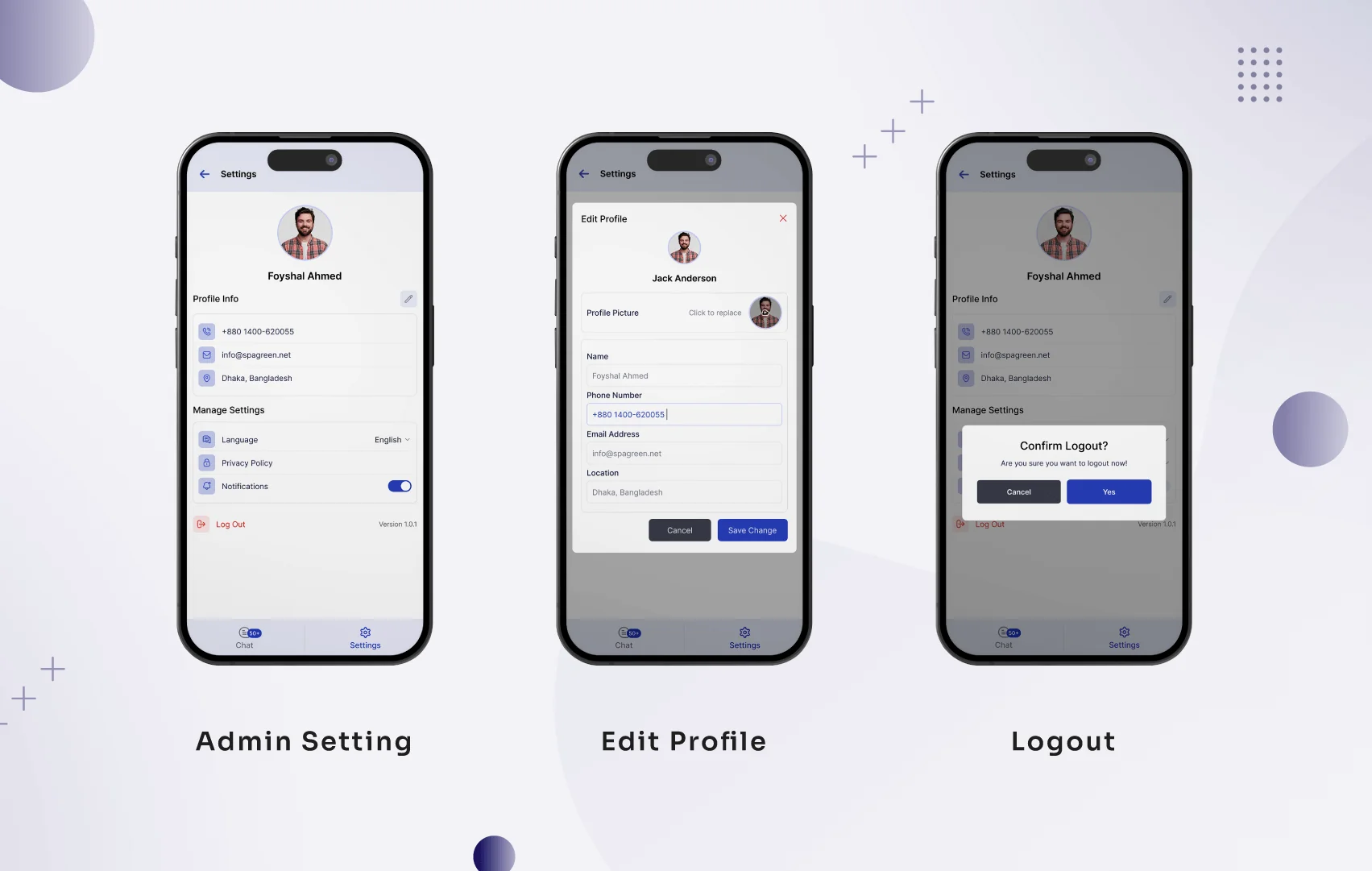
- Profile Management: Admin can edit their personal profile details, such as phone number, email address, and office address.
- Language Preferences: Admin can change the interface language.
- Privacy Policy: Admin can access and review the platform’s privacy policy.
- Logout Option: Admin/Staff can log out from the app securely.
By connecting directly to the Salebot Web Application, the Salebot Agent Chat App ensures that businesses have all the tools they need to optimize their customer service processes. From enhancing response times to automating replies, to providing detailed analytics and reporting features, this app supports businesses in delivering a more efficient, cohesive, and satisfying customer experience. Whether managing one-on-one chats or bulk communication across multiple channels, the Salebot Agent Chat App is a vital tool for businesses looking to stay ahead in today’s fast-paced, customer-focused world.